
¡Oferta!
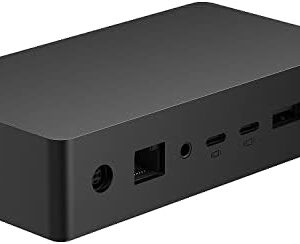
Vista frontal (Puertos USB-C)
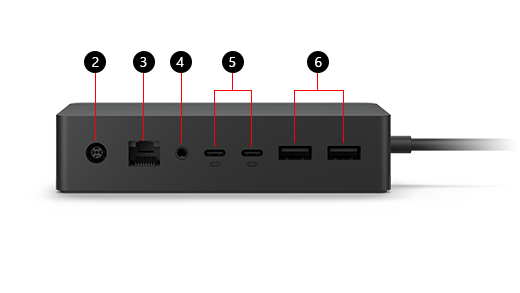
Vista trasera y lateral
Microsoft Surface Dock 2, Ethernet para portátil Renovado
El precio original era: $349,99.$209,99El precio actual es: $209,99.
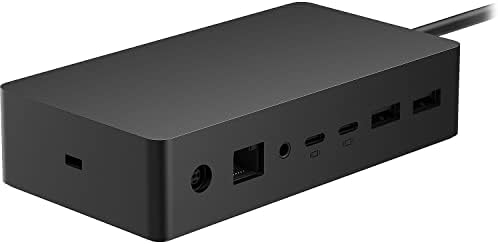
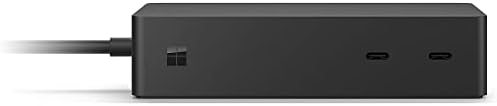
¡Calidad Garantizada!Convierta instantáneamente su Surface en un PC de escritorio con los puertos de próxima generación en el nuevo Surface Dock 2. Simplemente conecta el cable Surface Connect para cargar tu dispositivo y acceder a monitores externos, un teclado, mouse y mucho más. Fuente de alimentación de 199w; cable Surface Connect más largo (31.5 in). Soporta 4K dual a 60Hz 2 USB-C frontales, 2 USB-C orientados hacia atrás (generación 2), 2 USB-A orientados hacia atrás, conector de audio de entrada y salida de 0.138 in, Ethernet de 1 gigabit, soporte de bloqueo de seguridad (compatible con Kensington)
Utilice Surface Dock 2
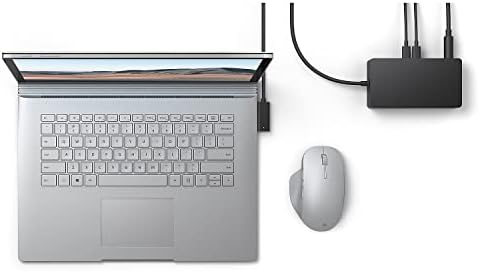
Conecte su Surface a monitores de tamaño completo, red Ethernet cableada, altavoces externos y más, mientras carga su dispositivo.
Nota: Si no está seguro de qué modelo de base de acoplamiento tiene, consulte la guía para Identificar su base de acoplamiento Surface y sus características.
Anatomía y Puertos de Surface Dock 2
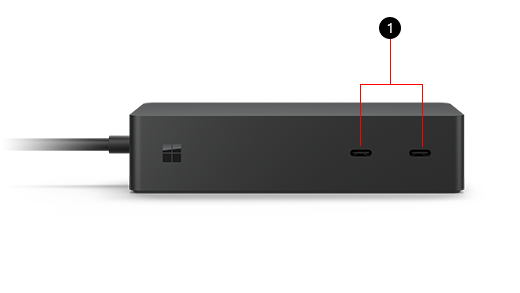
Vista frontal (Puertos USB-C)
Vista trasera y lateral
Especificaciones de Alimentación
Configuración de su Espacio de Trabajo
1
Conecte el cable de alimentación CA a la toma de corriente y el otro extremo al puerto de alimentación del Dock.
2
Conecte su cable de red al puerto Gigabit Ethernet si prefiere una conexión por cable.
3
Enchufe sus periféricos habituales (teclado, ratón, impresora) a los puertos USB-A o USB-C.
4
Conecte los monitores externos a los puertos de pantalla USB-C® posteriores.
5
Conecte el cable Surface Connect a su dispositivo Surface. La carga y la transmisión de datos se iniciarán automáticamente.
Ajustes de Pantalla Externa
Acceda a Inicio > Configuración > Sistema > Pantalla para configurar el comportamiento del monitor:
- Duplicar: Muestra la misma imagen en ambas pantallas.
- Extender: Amplía el escritorio para arrastrar ventanas entre pantallas.
- Mostrar solo en…: Apaga la pantalla del dispositivo Surface o del monitor.
Ajustes de Sonido
Acceda a Inicio > Configuración > Sistema > Sonido para elegir dispositivos activos:
- Salida: Seleccione los altavoces del Dock o los integrados en Surface.
- Entrada: Configure el micrófono de estudio o un accesorio externo.
Para garantizar el funcionamiento óptimo de todos los periféricos, mantenga su Surface y Surface Dock 2 actualizados mediante Windows Update.
| Interfaz Hardware | DisplayPort, Estación de conexión USB, Ethernet, USB, USB-C |
|---|---|
| Puertos USB | 6 |
| Dimensiones del artículo (largo x ancho x alto) | 11,4"l. x 5,2"an. x 3,7"al. pulgadas |
| Peso del producto | 1,13 Libras |
| UPC | 889842627039 |
| Fabricante | Microsoft |
| Nombre Tipo Artículo | Estación de acoplamiento |
| Contenido de la caja | Muelle de superficie 2 |
| Total del paquete según la medida elegida para referenciar precio | 1.0 Conteo |
| Descripción de la garantía | 1 año de fabricante |
| Clasificación en los más vendidos de Amazon | nº3,701 en Computadoras y Accesorios (Ver el Top 100 en Computadoras y Accesorios) nº332 en Bases de Conexión para Laptops y Netbooks |
| Marca | Microsoft |
| Color | Negro |
| Interfaz de hardware | DisplayPort, Estación de conexión USB, Ethernet, USB, USB-C |
| Dispositivos compatibles | Cuaderno |
| Total de Puertos USB | 6 |
| Dimensiones del producto | 11,4"l. x 5,2"an. x 3,7"al. pulgadas |
| Número de puertos | 6 |
| Peso del artículo | 1,13 Libras |
| Potencia | 199 vatios |
| Número de identificación de comercio global | 00889842627039 |
| Feature | 2 USB-C frontales, 2 USB-C orientados hacia atrás (generación 2), 2 USB-A orientados hacia atrás, conector de audio de entrada y salida de 0.138 in, Ethernet de 1 gigabit, soporte de bloqueo de seguridad (compatible con Kensington) |
9 valoraciones en Microsoft Surface Dock 2, Ethernet para portátil Renovado
Solo los usuarios registrados que hayan comprado este producto pueden hacer una valoración.
-
¡Oferta!

Amazon Echo Dot Kids (modelo más reciente), Diseñado para niños, cuenta con control parental
El precio original era: $90,00.$70,00El precio actual es: $70,00. DISPOSITIVOS AMAZON Seleccionar opciones Este producto tiene múltiples variantes. Las opciones se pueden elegir en la página de producto -
¡Oferta!
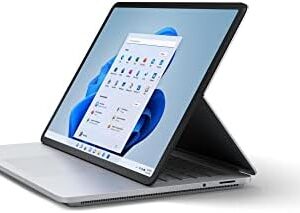
Microsoft Surface Laptop Studio Pantalla táctil de 14.4 pulgadas, 1 TB, i7, 32 GB de RAM Win 11 Pro ( Wi-Fi, Nvidia RTX 3050 Ti) Platino, Renovado
El precio original era: $2.500,00.$1.650,00El precio actual es: $1.650,00. DISPOSITIVOS MICROSOFT Añadir al carrito -
¡Oferta!
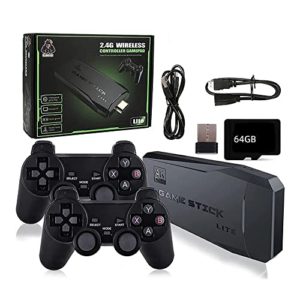
DATA FROG 4K HD Retro Video Game Console 2.4G Double Wireless Controller
El precio original era: $55,00.$47,00El precio actual es: $47,00. COMPUTACIÓN Añadir al carrito -
-
¡Oferta!
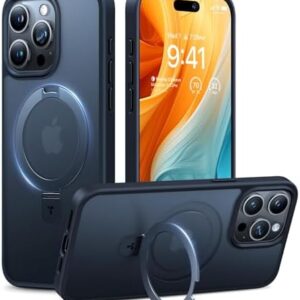
Estuche magnético Ostand para iPhone 15 Pro Max, compatible con MagSafe, Soporte integrado, prueba de caídas de grado militar
El precio original era: $45,98.$25,00El precio actual es: $25,00. CELULARES & TABLETS Seleccionar opciones Este producto tiene múltiples variantes. Las opciones se pueden elegir en la página de producto -
¡Oferta!
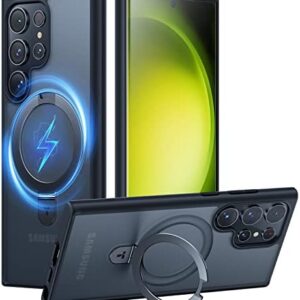
Estuche magnética con anillo Ostand para Samsung Galaxy S23 Ultra, carga magnética y carga inalámbrica, prueba de caídas de grado militar
El precio original era: $45,55.$25,00El precio actual es: $25,00. CELULARES & TABLETS Seleccionar opciones Este producto tiene múltiples variantes. Las opciones se pueden elegir en la página de producto
Productos relacionados
-
¡Oferta!
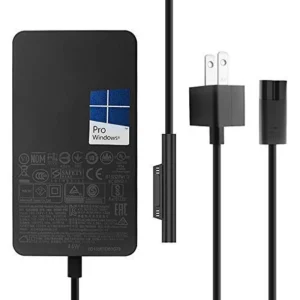
Microsoft Surface Cargador original de 44 W, 15 V, 2.58 A, compatible con con puerto de carga USB de 5 V 1 A
El precio original era: $70,00.$39,99El precio actual es: $39,99. ACCESORIOS MICROSOFT Añadir al carrito -
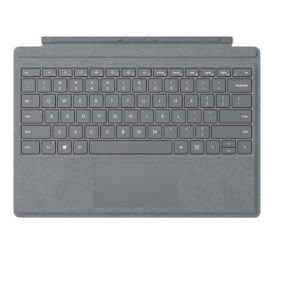
Microsoft Teclado Para Surface Pro (3,4,5,6,7) Platino
$150,00 ACCESORIOS MICROSOFT Añadir al carrito -
¡Oferta!
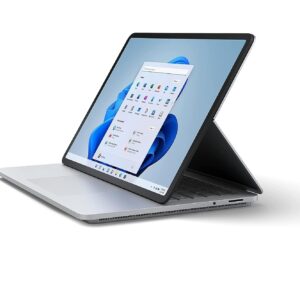
Microsoft Surface Laptop Studio i7-1137H 32GB RAM 2TB SSD NVIDIA® GeForce RTX™ 3050 Ti Win 11 Nueva
El precio original era: $4.500,00.$2.999,00El precio actual es: $2.999,00. DISPOSITIVOS MICROSOFT Añadir al carrito -
¡Oferta!
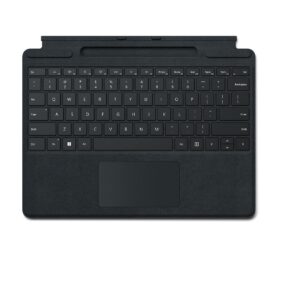
Microsoft Teclado Para Surface Pro(8,9,10,X,11) Con Slot Para Slim Pen, Negro
El precio original era: $280,00.$250,00El precio actual es: $250,00. ACCESORIOS MICROSOFT Seleccionar opciones Este producto tiene múltiples variantes. Las opciones se pueden elegir en la página de producto -
¡Oferta!
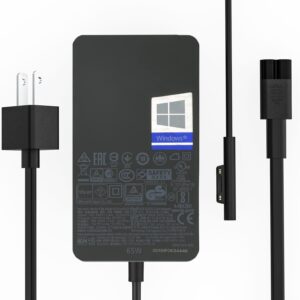
Microsoft Surface Cargador Original de 65 W, 15 V, 4 A, 65 W. Compatible con con puerto de carga USB 2.0 de 5 V/1,5 A.
El precio original era: $80,00.$49,99El precio actual es: $49,99. ACCESORIOS MICROSOFT Añadir al carrito
Doug Near Seattle –
Use a USB-C to HDMI connection to your monitors!
I’ve been using a Surface Dock 2 (purchased from another retailer) with a Surface Pro X. I connected the Dock to the monitor using a VGA adapter I’d been using with an older computer. At first the new setup worked fine but after a few months the monitor began to flicker. Sometimes the monitor wouldn’t display anything at all. Each time I turned the computer on I had to fiddle with the connection but eventually, fiddling no longer worked. Eventually I stopped trying and made due with just the Pro X monitor. Needless to say, I was quite frustrated. As time when y I continued to search for a solution directly with Microsoft, on the web and here on Amazon’s pages. I noted that many other Dock 2 users were having similar frustrations. The monitor I was using was an older model so I bought a one. The problems continued with the new monitor. Thinking the VGA cable I was using might have been the source of the trouble, I tried a new one of those, another VGA. That didn’t fix the issues either. Well, the other day I decided to take last shot with an HDMI cable, purchased here on Amazon (USB C – HDMI 6 ft Benfei) for about $10. Today I plugged it in. Immediately, the monitor worked flawlessly! I don’t know if all VGA connectors fail with the Dock 2 but clearly, mine did. So my recommendation is to go the HDMI route from the start and save yourself a lot of potential grief. By the way, I’ve loved the Pro X itself from the beginning.
A 6 personas les resultó útil
Nick Smith –
Surface studio laptop
Works great with the surface studio laptop. I have a 5120×1440 monitor that I have a single USB-C to DisplayPort cable connected to the dock. It is able to drive that monitor in HDR without any issues. Charging is at full speed as well. It also has a gigabit Ethernet connectionThey provide enough usb ports for a non insane person. My desktop on the other hand uses about 15 usb ports and has a hub. I haven’t required a use case with this dock to add much and don’t really fill them all. If your laptop is your primary computer then I could see the need to buy a hub in addition to this dock Works great with the surface studio laptop. I have a 5120×1440 monitor that I have a single USB-C to DisplayPort cable connected to the dock. It is able to drive that monitor in HDR without any issues. Charging is at full speed as well. It also has a gigabit Ethernet connection or at least what my router is reporting.They provide enough usb ports for a non insane person. My desktop on the other hand uses about 15 usb ports and has a hub. I haven’t required a use case with this dock to add much and don’t really fill them all. If your laptop is your primary computer then I could see the need to buy a hub in addition to this dock.I don’t know if anything gets bottlenecked. But it seems to handle a lot of data transfer over this thin cable. Very satisfied about how slick and robust this dock is.
A 9 personas les resultó útil
Ch4oswe4verCh4oswe4ver –
A bit pricy, but super convenient!
I have a Surface Laptop 4 that I wanted to dock into a more desktop PC like setup with a mouse, keyboard, and external monitor, but I didn’t want a bunch of cables hanging out of the laptop and that I would have to yank when I wanted to take the laptop on the go. I initially thought of getting a USB C hub with charging support and lots of USBs and HDMI etc, because the Surface does support charging and display over USB C, but I decided to splurge and get the official Microsoft Surface Dock 2 instead, as I love the magnetic Surface connector. Now I can plug everything and the kitchen sink into my laptop with just one cable.So far the only things I have plugged into the dock are the receiver for my mouse, the 3.5mm audio cable going to a Bluetooth speaker that doubles as my PC speaker, and a cable in one of the front USB C ports to charge my phone and other devices at my desk. I do not yet have my external monitor (letting my bank account recover from buying this dock haha). I plan on getting a ~24″ 1440p display, I may just go with one that has native USB C display support, or HDMI with an adapter cable, however some people have reported having touble doing this unless they purchased an expensive Microsoft HDMI to USB C adapter, so I will research a bit more. I will also update this review if I have trouble connecting an external display. The quality as with most official Microsoft products is really good. The dock is a hefty black box, and it feels really solid. The entire bottom is covered in a grippy rubber, so it will definitely stay put on your desk and won’t flop around or get pulled off the desk top by a ton of cables being plugged in or anything. All the ports feel high quality too, the USB C ports all have a good firm click when plugging in accessories. The AC adapter brick is amusingly a bit larger than the dock itself, but the max power output of this thing is almost 200w so that’s understandable. All the cables used to connect the dock are really sturdy feeling and chunky, but they are not stiff. They are still flexible enough to route them however you need for your setup. Overall, if you can drop the cash for the convenience and you have a compatible Surface PC I would highly recommend this dock! I mostly just use mine for home use, and hobby content creation like digital drawing and dabbling with music production software etc, but this would also be a great office or work-from-home companion as well.
A 5 personas les resultó útil
Jennie Espy –
Works Well with Microsoft Surface Laptop Studio
The original power charger that came with my Microsoft Surface Laptop Studio quit working, so I needed to purchase a replacement charger. It’s nearly impossible to find a similar charger to the original, other than through third party options. I found out the hard way that a non-Microsoft product isn’t always compatible, despite what online descriptions state. So I needed to return the replacement charger I initially purchased.Thankfully I had the original Surface Dock as a backup to use with my Microsoft Surface Laptop Studio until I received the Surface Dock 2. Like the original Surface Dock, the Surface Dock 2 works perfectly with my Laptop Studio device — but with improved compatibility and greater power. (I always received a message about the original Surface Dock transmitting a slow charge and to use the original charger that came with my device, which was impossible.)My only real complaint is the steep cost of the Surface Dock 2 (approximately $200-$260, depending on if you can find it on sale or full price).
A 3 personas les resultó útil
Smabbage –
Works as intended after some tinkering.
I hooked the dock to my Surface Pro 7 upon arrival and found that the only thing it would do was charge the device. None of the other features were working. After some time on Google, I found that there were two usb devices that Windows did not recognize listed in the Device Manager. Spent another hour on Google and found a program called «USB Oblivion» that removes hidden USB devices from the device manager. Once all the hidden devices were removed and the computer rebooted, the dock began to work as it was designed. Hope this helps if anyone else is experiencing issues. Couldn’t find anything on the Microsoft site about the problem. Just dumb luck I found this gem of a program.
A 7 personas les resultó útil
Elias Sayegh –
A must for SB2 or SB3
The gen 2 of the Surface Dock was not available when I purchased the Surface Book 2. I ended up getting the gen 1 of the Surface Dock. It did a great job. However the main issue was the power delivery. You guessed it; it doesn’t deliver enough juice to the device if it’s operating some demanding software or games, and eventually it will keep draining the battery until it’s out.I can gladly confirm that this issue is fixed with the Surface Dock 2 ! No more draining the battery 😀 At least with me. I would have expected it to be slimmer though, however it’s almost as bulky as the first generation.If you are like me and have lots of devices with USB A peripherals, you’ll need a USB hub because the new Surface Dock 2 has fewer USB A ports and instead more USB C ports.One last comment, I have faced issues with connecting a new display to the Surface Dock 2. A simple fix of registry (downloaded from the Microsoft website) has solved the issue. This might occur to you if you might have previously used the Surface Dock 1 to connect your device to an external display.
P. Ng –
Works good for Surface Go 1
TL:DR -This works for MS Surface Go, gen 1! USB C to HDMI seems to work with generic and quality USB c to HDMI devices.Everything seems to work as expected. Plug in, let it install the drivers, then go!…restart may be necessary.The dock itself has soft rubber(?) lining on the bottom to reduce sliding around.The dock connects to your surface with the proprietary magnetic plug that’s around 32 inches so your laptop or tablet doesn’t have to be stuck near the dock.Ethernet port works as expected.Audio port is both speaker + mic ports in one (similar to your cell phone).Two USB c video ports in the back so you add two monitors!I would recommend if you need more than a tablet or laptop.Detailed review -I wasn’t sure if this would work well for my Surface Go but I took the chance. I also was concerned about the USB c to HDMI adapter because i’m not as familiar with the USB c protocols and devices. Both turned out to work fine together. I have my Surface Go 1 docked now, with both my HDMI monitor and HDMI TV connected to this dock.Setup was very easy. I just plugged everything in and let it set itself up. I did have to let it finish setting up and then disconnect and reconnect the connector. I suspect this necessity is a Windows thing, maybe a surface thing, because I had to do it with my generic hub as well. Reconnect it and it should work.The HDMI adapter that I bought worked easily out of the box. An interesting thing that I found was that my generic USB c hub (5 in 1 or 7 in 1 type) has an HDMI out and that worked too! This USB c display protocol that this dock has may already be in our USB c devices that have HDMI ports. I checked my device manager and display adapter settings and it appears that the HDMI connections are working off the surface’s graphics cards and not the external video card types.The second biggest reason I wanted to get this dock was the Ethernet port that this dock has. My surface doesn’t have an Ethernet port and I’m read that normal 7 in 1 hubs that have HDMI and Ethernet ports usually can’t handle the data so I didn’t want to spend the $ to find out later that I’m not getting the expected performance. I don’t know how to tell how fast the Ethernet is working but I can watch a video over remote desktop with only a slight bit of lag on one of my HDMI connected monitors.The audio port with both mic and headphones is important nowadays because of the video conferencing that I’ve been doing and this port works as expected. One thing that was interesting was that windows identified the device as USB Audio or Headphones (USB) but this is not a problem.Final words, this is a dock, not a hub. Meaning, don’t expect this to be portable. This is not a portable device, I think of this as a portability facilitator. It lets you be portable by putting all your device connections in one place AND adds more connectors and expands on what you can connect as well. It also has a power brick that is literally the same size as the dock.If you want portable, then you need something more like a hub, but those hubs are not a great solution for permanent setups either because you might need to power it with a USB c port AND your surface will still need its power supply if you don’t want to just run on batteries. Then you might also need your audio connection… This is really how my setup was before this dock. My hub connected to my Surface’s USB c. it needed power so it was plugged into a USB power adapter. This hub also didn’t work every time and I constantly had to unplug it or its power until things connected. My Surface’s power connector was also plugged into my Surface and I had an audio connection for my speakers.My device:Surface Go (model 1824)CPU: Intel Pentium 4415Y @ 1.6, 64 bitRam 4 GBUSB C to HDMI:Cable Matters Aluminum USB C to HDMI Adapter for Surface Pro 7 and More – Support 4K 60Hz and HDRhttps://www.amazon.com/dp/B07MFW2G3K
A 36 personas les resultó útil
Katelyn –
Allows Dual Monitors, Messes up Mouse and Keyboard connection
I bought this because I ended up with a second monitor and wanted to set up a dual monitor system on my desk with my Surface Pro 7+ whilst being able to easily disconnect from the set up in case I need to go mobile. I previously just had a simple USB-C hub with an HDMI and other USB3.0 ports that worked perfectly normal for a single monitor set up. I set this up and while everything looks great (displays properly, internet hardwired in is fantastic, etc.), now my hardwired keyboard plugged into the dock tends to glitch by either missing keystrokes or holding a letter down for too long. This especially happens if I’m on my remote connection to my work computer. My mouse works ok in it but lags even more on the remote connection. and even if I also plug the USB-C hub back in and connect my keyboard with that, it still glitches just a little less. The only way I’ve gotten everything to work as it was before is if I plug it directly into my surface instead of the dock ports. This is unfortunate since the whole point of the dock is so I can have just one plug/unplug point, but I’ve tried to look at settings and everything I think it just comes down to that there’s too much going on for the dock to handle in that communication with the surface. Overall I’m still happy with the purchase since it makes my set up clean and still allows for the dual displays but just bummed I can’t just only use that as the main hub.If anyone has encountered this and also a fix please let me know because I deal with a lot of CAD work on my remote sessions and it drives me crazy to have to deal with the glitches.
A 3 personas les resultó útil
Snake Plissken –
Charging issue
I bought this to use with my Microsoft Surface laptop but every time I plug it in I get a message that says it’s a slow charge and if I want it to charge faster to buy a more powerful hub (I’m paraphrasing). I made sure I didn’t buy a cheaper version. I bought the Microsoft hub. Why won’t it charge my Surface at full strength like it does if I use the power cord that came with the laptop?